Manage products and catalog data
Available in: Merchant and Marketplace. Specific catalog tools can vary by edition and configuration.
Use Catalog → Products for individual products and Catalog → Product Sheet for grid-based catalog work. Before a bulk edit, confirm the affected products and fields, export a copy of the current view when you need a review record, and test a small representative change first.
Before you begin
Sign in with an administrator account that can access Catalog. Which workspaces and actions appear depends on the account's role, permissions, edition, and installed configuration. Ask your Vendorzo administrator to grant the minimum access needed; see Manage administrators and access.
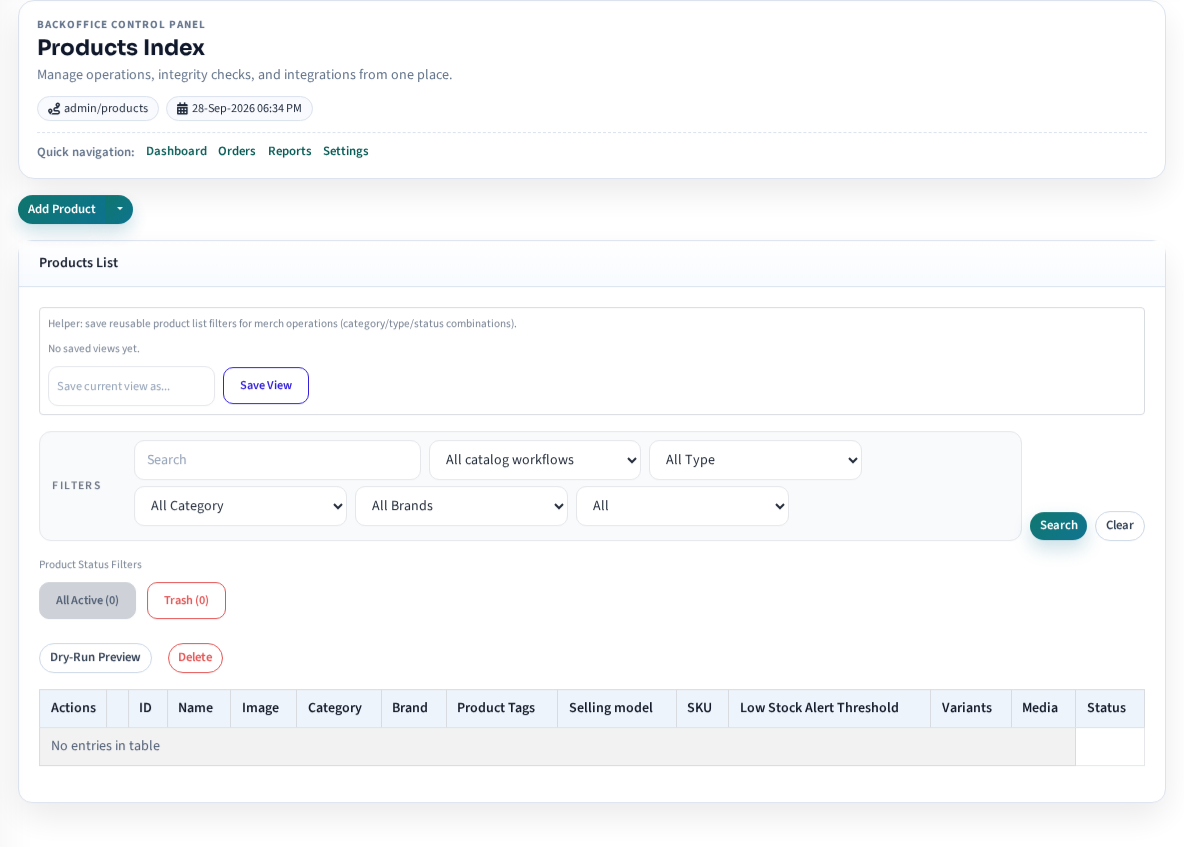
- Add Product opens the available product workflows.
- Filters narrow the list by search, catalog workflow, type, category, brand, and status.
- Products List shows the records that match the current filters. Review the selection carefully before using any bulk action.
Create or edit a product
- Open Catalog → Products. Filter by name, SKU, catalog workflow, category, brand, or status to locate the right record.
- Select Add Product and choose the appropriate workflow: Product, Component Bundle, Prepacked Bundle, Combined Listing, or Grouped Listing. These options describe different selling structures; choose based on how the item should be represented and sold.
- Enter the product information required by your store, including customer- facing content and any configured catalog fields. Add variants only when the option changes the purchasable item, such as size or color.
- Review SKU, price, status, category, media, and stock-related information before saving. Availability can depend on the selected edition, inventory configuration, and storefront theme.
- Preview the product on the storefront at desktop and mobile widths. Confirm the correct variant, price, images, and purchase behavior before publishing.
Make a change with Product Sheet
For individual edits in the grid, filter to a small, identifiable group, review the selected products, make the change, select Save Sheet Changes, and then open representative product records to confirm the saved values.
For a CSV import, treat Import Sheet as a write operation. Load Columns stages the CSV and detects columns; it does not show a row-by-row before/after preview or let you apply only accepted rows. If you need to inspect the exact impact before changing records, test the file on a non-production copy first. Product Sheet bulk actions have their own Preview Impact step; that preview is separate from CSV import and does not show the row-level effect of an import file.
- Open Catalog → Product Sheet and download Import Template. Review
the template’s helper rows and column guidance. Rows whose first value
starts with
#are treated as notes and ignored. The importer supports CSV; prepare a UTF-8 file and keep a copy of the source. - Open Import Product Sheet, choose the import mode, upload the file, and select Load Columns. Confirm First row is header matches the file. The next form shows detected columns. Select the fields to import; unchecked columns are ignored.
- Choose the row matching key and duplicate-key behavior. The recommended
matching mode tries ID first and uses SKU when the ID is missing or does not
match.
ID only,SKU only, andName onlyuse only that field; duplicate names are flagged as unsafe. The template can identify product rows with IDs such asP-123and variation rows such asV-456; legacy numeric IDs are also accepted. - Select Import Sheet only after checking the selected fields, matching key, and mode. Add + Overwrite creates unmatched rows and updates matched rows; Add Missing Only skips existing matches; Overwrite Existing Only skips rows without a match. Duplicate matching keys stop the import by default. Continuing past duplicates can make row matching ambiguous, so use it only after the import owner has checked the file.
- Check the completion counts and skip reasons. A large import may appear in Reports → Product Sheet Operations while it runs; review its status and operation report there. Reopen representative products and variations to confirm the resulting catalog values before relying on them in the storefront.

Bulk catalog edits can change what customers see or can buy. Do not infer success from column detection or a queued operation alone; confirm the saved records and test a representative product through the storefront.
Keep catalog data consistent
- Create and maintain categories, brands, tags, and attributes before applying them across a large catalog.
- Keep product identity and SKU assignment stable. Verify variant-level price and inventory behavior where variants are independently purchasable.
- Use product customizations, content blocks, size guides, metafields, and metaobjects only when the active theme and configuration use them.
- For Marketplace, seller ownership and offers/listings are separate from the underlying product. Use the marketplace workflow instead of duplicating a product to represent ownership.
If a product is missing or cannot be purchased
Check the active/trash view, catalog kind, status filters, edition, required product fields, variant selection, location stock, and storefront publication. For bulk updates, review the import rejections and operation report. If the saved record and storefront disagree, capture the product identifier and the time of the change, then use Troubleshooting.
Next: Manage locations and inventory · Manage storefront content